Những phím tắt hữu ích trong windows
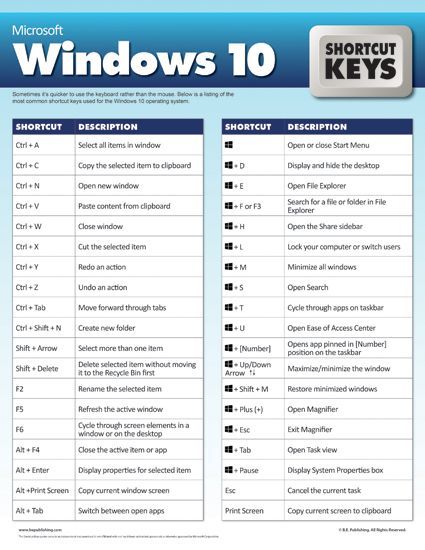
Button Function on keyboard:
????⌨Ctrl + A : Select All
????⌨Ctrl + B: bold
????⌨Ctrl + C: copy
????⌨Ctrl + D: font
????⌨Ctrl + E : Center Alignment
????⌨Ctrl + F : Find
????⌨Ctrl + G: go to
????⌨Ctrl + H : Replace
????⌨Ctrl + I : Italic
????⌨Ctrl + J : Justify Alignment
????⌨Ctrl + K: insert hyperlinks
????⌨Ctrl + L : Left Alignment
????⌨Ctrl + M: Incrase indent
????⌨Ctrl + n: new
????⌨Ctrl + O: open
????⌨Ctrl + P: Print
????⌨Ctrl + Q: normal style
????⌨Ctrl + R : Right Alignment
????⌨Ctrl + S : Save / Save As
????⌨Ctrl + T : Hanging Indent
????⌨Ctrl + U : Underline
????⌨Ctrl + V: Paste
????⌨Ctrl + w: close
????⌨Ctrl + x: cut
????⌨Ctrl + Y: redo
????⌨Ctrl + Z: undo
????⌨Ctrl + 1 : Single Spacing
????⌨Ctrl + 2 : Double Spacing
????⌨Ctrl + 5 : 1,5 lines
????⌨Ctrl + ESC: start menu
????⌨F1: running the help function provided on word
????⌨F2: altering name a file / folder
????⌨F3: running orders command
????⌨F4: repeating previous orders
------------ Ann: running search and replace command or goto ------------
????⌨F6.: running other command pane
????⌨F7: memeriksaan typos and text spelling (spelling)
????⌨F8: the beginning of the highlight / selection of text or object
????⌨F9 : Mengupdate Field (Mail Merge)
????⌨F10: enable menu
????⌨F11: entering the next field (mail merge)
????⌨F12: activating the us save dialog
????⌨ESC: cancel dialogue / command
????⌨Enter: perform an option or end a paragraph
????⌨Tab: move text according to the existing tab tags on horizontal ruler
????⌨Windows: Mengktifkan start menu
????⌨Shortcut: activating shortcut at cursor position
????⌨Delete: Remove 1 characters on the right of the cursor
????⌨Backspace: Removing 1 characters on the left of the cursor
????⌨Insert: Menyisip character in cursor position
????⌨Home: move cursor position to the beginning of the line
????⌨End: move cursor position to end of line
????⌨Page Up: Roll the screen up
????⌨Page Down: Roll the screen down
????⌨Up: MOVE CURSOR 1 line up
????Down: MOVE CURSOR 1 line down
????⌨Left: MOVING CURSOR 1 characters to left
????⌨Right: MOVE THE CURSOR 1 characters to the right
????⌨Num Lock on: function typing numbers and active math operators
????⌨NUM LOCK OFF: Active Navigation button function
????⌨Shift + F10: open the shortcut, just like clicking right
????⌨Alt: button emphasis that is not combined with other buttons only
--------------- Work to enable or start using bar menu -----------------
????⌨Shift + Delete: delete selected items permanently without placing items In Recycle bin
????⌨Ctrl + Right Arrow: move the insertion point to the beginning of the next word
????⌨Ctrl + Left Arrow: move the insertion point to the beginning of the previous word
????????Ctrl + Down Arrow: move the insertion point to the beginning of the next paragraph
????⌨Ctrl + Up Arrow: move the insertion point to the beginning of the previous paragraph
????⌨Alt + F4: close active items, or log out of active programs
????⌨Alt + Enter: displaying properties from selected objects
????⌨Alt + Spacebar: open the shortcut menu for active windows
????⌨Ctrl + F4: close active documents in programs that allow you To have some open documents simultaneously
????⌨Alt + Tab: switch between open items
????⌨Alt + ESC: cycle through items in an open order
????⌨Ctrl + shift + Tab: move backwards through tabs
????⌨Shift + Tab: move backwards through options
======================== Version 2 ==================
• ????⌨Ctrl + C (copy)
• ????⌨Ctrl+X (cut)
• ????⌨Ctrl+V (Paste)
• ????⌨Ctrl+Z (undo)
• ????⌨Delete (delete)
• ????⌨Shift+Delete (delete selected items permanently without putting items in recycle bin)
• ????⌨Ctrl while dragging (Men-drag) an item (copying selected items)
• ????⌨Ctrl + shift while dragging items (make shortcuts to selected items)
• ????⌨F2 Button (change the name of the selected item)
• ????⌨Ctrl + Right Arrow (move the insertion point (Cursor) to the beginning of the next word)
• ????⌨Ctrl + Left Arrow (move the insertion point (Cursor) to the beginning of the previous word)
• ????⌨Ctrl + Down Arrow (move the insertion point (Cursor) to the beginning of the next paragraph)
•????⌨ Ctrl + Up Arrow (move the insertion point (Cursor) to the beginning of the previous paragraph)
• ????⌨Ctrl + shift with one of the arrow key (highlight text block)
• ????⌨Shift with one of the arrow key
----------------------- (Select more than one item in a window or on desktop, or select text in document) -----------------
•????⌨ Ctrl + a (Select all)
• ????⌨F3 Button (looking for a file or folder)
• ????⌨Alt + Enter (view properties for selected items)
• ????⌨Alt + F4 (closing active items, or out of active programs)
• ????⌨Alt + Enter (display properties from selected objects)
• ????⌨Alt + Spacebar (Open Shortcut Menu for active windows)
• ????⌨Ctrl + F4 (closing active documents in programs that allow you to have some open documents simultaneously)
• ????⌨Alt + Tab (switch between open items)
• ????⌨Alt + ESC (cycle through items in an open order)
• ????⌨The F6. Button (cycle through the screen elements in the window or on desktop)
• ????⌨F4 Button (featuring address bar list on my computer or windows explorer)
• ????⌨Shift + F10 (Featuring Shortcut Menu for selected items)
• ????⌨Alt + Spacebar (system menu display for active windows)
•????⌨ Ctrl + ESC (featuring start menu)
• ????⌨Alt + underlined letter in menu name (display the appropriate menu)
• ????⌨underlined letter in the name of the command on the open menu (do the appropriate command)
• ????⌨Button Button (enable bar menu in active program)
• ????⌨Arrow (open the next menu to the right, or open the submenu)
• ????⌨Left Arrow (open the left menu, or close the submenu)
• ????⌨Ann Button (updating active windows or refreshing)
• ????⌨Backspace (see folder one level up on my computer or windows explorer)
• ????⌨ESC (cancel duty now)
•????⌨ Shift when you enter a CD-Rom into a CD-ROM (Prevent CD-Rom automatically playing / autoplay)
Keyboard Shortcuts Dialog Box
• ????⌨Ctrl + Tab (move forward through tab)
• ????⌨Ctrl + shift + Tab (move backwards through tab)
• ????⌨Tab (move forward through options)
•????⌨ Shift + Tab (move backwards through choice)
• ????⌨Alt + underlined letters (do the appropriate command or choose the appropriate option)
• ????⌨Enter (do command for option or active button)
• ????⌨Spacebar (select or remove the checkbox if an active option is check box)
• ????⌨Arrow Tombols Arrow (Select a button if an active option is a selection button group)
• ????⌨F1 Button (featuring help)
• ????⌨F4 Button (showing items in active lists)
• ????⌨Backspace (open folder one level to the top if the folder is selected in save as or open the dialog box)
--------------- Microsoft Natural Tombolboard Shortcuts -----------------
• ????⌨Windows Logo (featuring or hiding the start menu)
• ????⌨Windows Logo + Break (Featuring System Properties dialog box)
• ????⌨Windows Logo + D (featuring the desktop)
•????⌨ Windows Logo + M (minimize all windows)
• ????⌨Windows Logo + shift + M (restore minimized window)
• ????⌨Windows Logo + E (open my computer)
• ????⌨Windows Logo + F (search for a file or folder)
• ????⌨Ctrl + Windows Logo + F (search for computer)
• ????⌨Windows Logo + F1 (featuring windows help)
• ????⌨Windows Logo + L (Lock Keyboard)
• ????⌨Windows Logo + R (open the run dialog box)
• ????⌨Windows Logo + U (Open Utility Manager)
Accessibility Tombol board Shortcuts
• ????⌨Right shift for eight seconds (switch filtertombols on or off)
•????⌨ LEFT ALT + LEFT SHIFT + PRINT SCREEN (Beralih High Contrast on atau off)
• ????⌨Left Alt + left shift + Num Lock (activate mousetombols on or off)
• ????⌨Shift five times (activate stickytombols on or off)
• ????⌨Num Lock for five seconds (activate toggletombols on or off)
• ????⌨Windows Logo + U (Open Utility Manager)
------------------- Windows Explorer Tombolboard Shortcuts ----------------------
• ????⌨End (displaying the bottom of the active window)
• ????⌨Home (showing the top of the active window)
• ????⌨Num Lock + Asterisk Sign (*) (show all subfolders that are under the selected folder)
• ????⌨Num Lock + Plus Sign (+) (featuring content from the selected folder)
• ????⌨Num Lock + minus sign (-) (collapse selected folder)
• ????⌨Left Arrow (collapse current option if expanded, or select main folder)
• ????⌨Right Arrow (featuring current selection, or select the first subfolders)
----------------- Shortcut Tombols for character map shortcut for character map -----------------------
• ????⌨Once you click twice on the character character grid, you can move through the grid by using the shortcut Shortcut:
• ????⌨Right Arrow (move to the right or to the beginning of the next line)
• ????⌨Left Arrow (move to the left or to the end of the previous line)
• ????⌨Up Arrow (move to top one line)
• ????⌨Down Arrow (move down one line)
• ????⌨Page Up (move to top one screen at a time)
• ????⌨Down (move down one screen at a time)
• ????⌨Home (move to early line)
•????⌨ End (move to end line)
• ????⌨Ctrl + Home (move to first character)
• ????⌨Ctrl + End (move to last character)
• ????⌨Spacebar (switch between the bigger and normal when a character is selected)
------------------- Microsoft Management Console (MMC) Main Window Tombol board Shortcuts ---------------------
• ????⌨Ctrl + O (open that saved console)
• ????⌨Ctrl + N (open new console)
• ????⌨CTRL + S (Save the open console)
• ????⌨Ctrl + M (add or remove console items)
• ????⌨Ctrl + W (open new window)
• Ann Button (content update from all console windows)
•????⌨ Alt + Spacebar (featuring mmc window menu)
•????⌨ ALT + F4 (Close the console)
• ????⌨Alt + a (display the action menu)
• ????⌨Alt + V (featuring the view menu)
• ????⌨Alt + F (featuring the menu file)
• ????⌨Alt + O (featuring the favourites menu)
----------------- Console mmc window tombolboard shortcuts ------------------
•????⌨ Ctrl + P (Print Active page or active pane)
•????⌨ Alt + minus sign (-) (featuring an active console window window)
• ????⌨Shift + F10 (featuring the action menu shortcut for selected items)
•????⌨ F1 Button (open the help topic, if any, for selected items)
• Ann Button (content update from all console windows)
• ????⌨Ctrl + F10 (Maximize Active Console Windows)
• ????⌨Ctrl + Ann (Restore Active Console Window)
• ????⌨Alt + Enter (display the properties dialog box, if any, for selected items)
• ????⌨F2 Button (change the name of the selected item)
•????⌨ Ctrl + F4 (close the active console window. When a console has only one console window, this shortcut will close the console)
-------------- Remote Desktop Connection Navigation ----------------
• ????⌨CTRL+ALT+END (Open the m*cro$oft Windows NT Security dialog box
• ????⌨Alt + page up (switch between program from left to right)
• ????⌨Alt + page down (switch between program from right to left)
• ????⌨Alt + Insert (cycle through programs last used)
• ????⌨Alt + Home (featuring start menu)
• ????⌨Ctrl + Alt + Break (switch client computer between windows and full screen)
• ????⌨Alt+Delete (featuring the windows menu) Alt + Delete (featuring the windows menu)
• ????⌨Ctrl + Alt + minus sign (-) (creating a snapshot of the client's active window on the terminal server clipboard and provides the same function by pressing screen print on a local computer. )
• ????⌨Ctrl + Alt + Plus Sign (+) (create a snapshot of the entire client window area on the terminal server clipboard and provide the same function by pressing alt + print screen on local computers. )
---------------- Internet Explorer Navigation Internet Explorer navigation ------------------
•????⌨ Ctrl + B (open favorite set dialog box)
• ????⌨CTRL + E (Open the select bar)
• ????⌨CTRL + F (Start the Find utility)
• ????⌨CTRL + H (Open the History bar)
•????⌨ CTRL + I (Open the Favorites bar)
• ????⌨Ctrl + L (open open dialog box)
• ????⌨Ctrl + N (start another example of a browser with the same web address)
• ????⌨Ctrl + O (open dialog box, just like ctrl + L)
• ????⌨Ctrl + P (Open Print dialog box)
• ????⌨Ctrl + R (updating this web page)
• ????⌨Ctrl + W (close window active)
• Prin Scrn + Active Printer (Printing Snapshot / overall window)
• ????⌨Alt + Print Scrn + Smart Active (Printing Windows Active)
• CA ????⌨Shift + F3 (1 x) (Capital front letter)
• ????⌨Shift + F3 (2 x) (all uppercase / big letters)
•????⌨Shift + F3 (3 x) (all small letters)
Tài liệu liên quan

Check SMB Version:
Xem chi tiết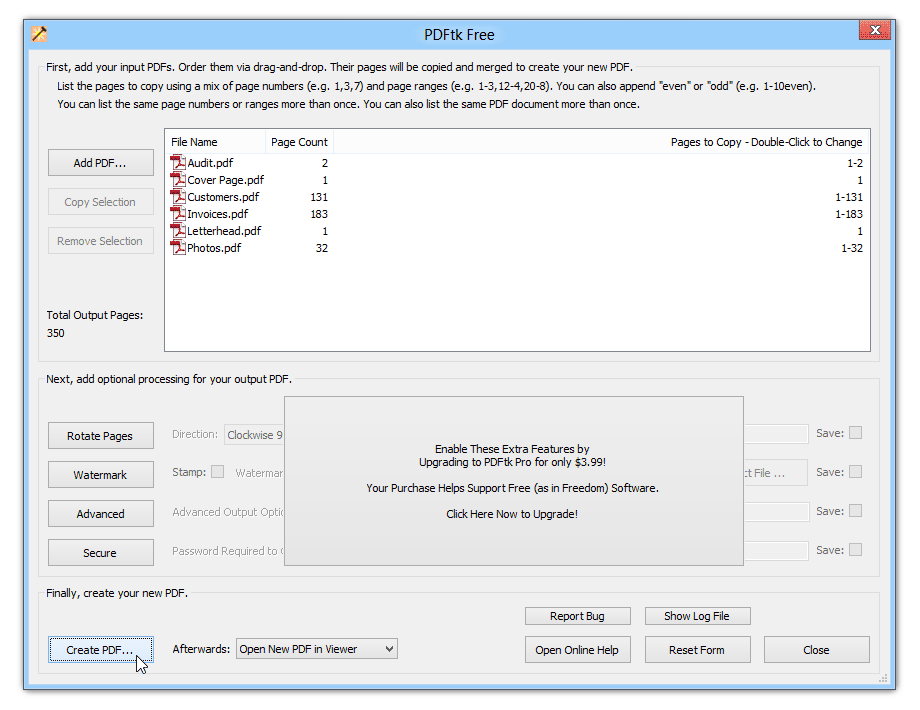
PDFtk, Mutool và GhostScript – Công cụ xử lý PDF (PowerShell)
Xem chi tiết